 Food
Food
How to Eat Well While Staying on a Budget
I remember sitting in my first tiny apartment, staring at a grocery receipt that looked more like a phone bill, wondering how I was supposed to eat anything other than instant noodles. The internet was full of “budget” influencers telling me I needed a $500 pantry starter kit or a dozen specialized gadgets just to survive the week. It’s total nonsense. You don’t need a culinary degree or a massive stockpile of organic superfoods to master how to cook on a budget; you just need a better system.
I’m not here to sell you on complicated meal prep rituals that take up your entire Sunday or expensive “hacks” that actually cost more than they save. My goal is to give you the exact, practical steps I use to keep my kitchen running efficiently without draining my bank account. We’re going to focus on smart shopping, minimizing waste, and using what you already have. I promise to keep this simple and functional, so you can spend less time stressing over prices and more time actually enjoying your food.
Table of Contents
Smart Grocery Shopping on a Budget for Real Life
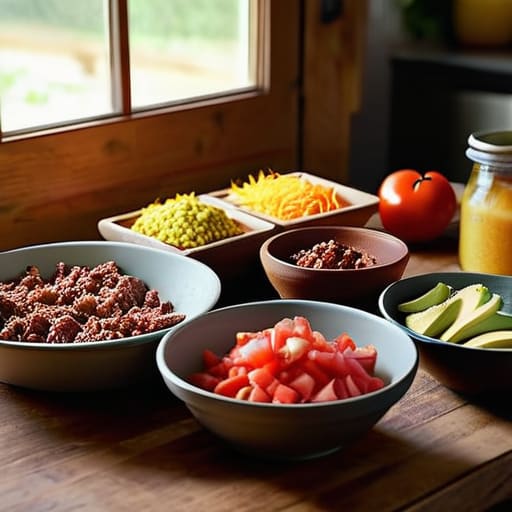
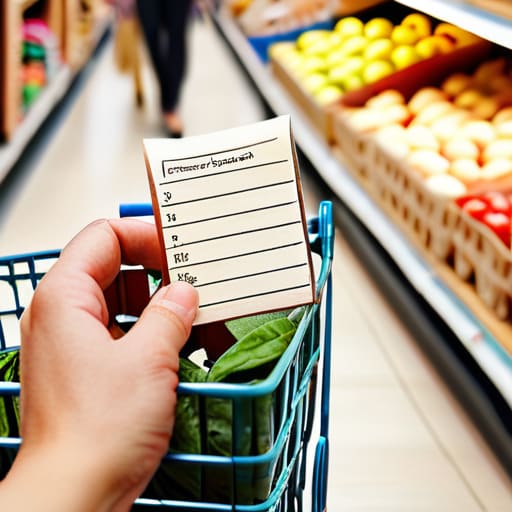
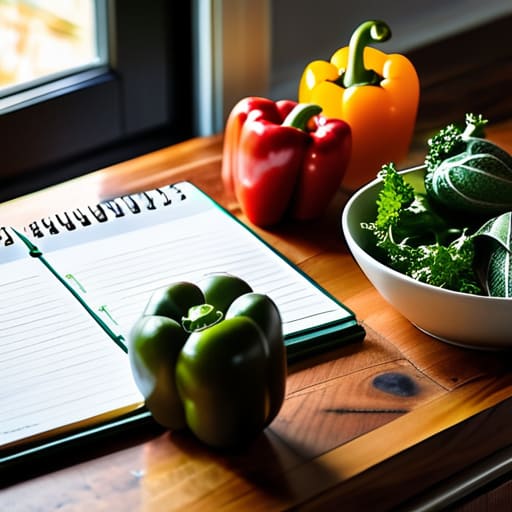
Before you even step foot in a store, you need a game plan. I used to wander the aisles aimlessly, throwing things in my cart that looked good in the moment but ended up rotting in the back of my fridge. Now, I rely on meal planning for beginners to keep me on track. This means looking at what I already have in my cupboards first, then writing a strict list based on what I actually intend to cook. If it isn’t on the list, it doesn’t go in the cart. It sounds rigid, but it’s the only way to stop those impulse buys that quietly bleed your bank account dry.
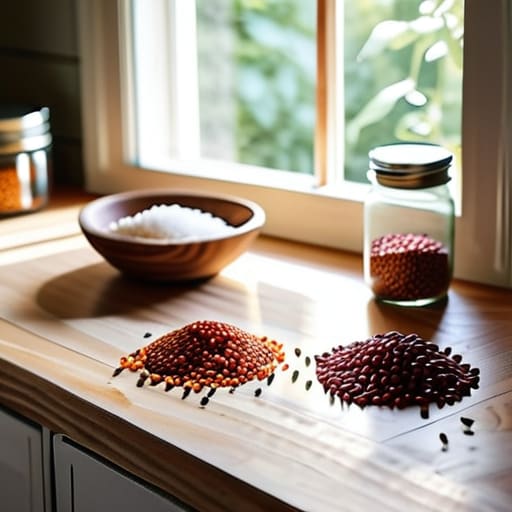
Once you’re in the aisles, focus on the foundation. I always prioritize stocking up on low cost pantry staples like dried lentils, rice, oats, and canned tomatoes. These are the building blocks for dozens of different meals and they have a massive shelf life. If you have a membership to a warehouse club, look into the bulk buying benefits for items like grains or olive oil, but be careful not to overbuy perishables. The goal isn’t to hoard food; it’s to build a toolkit that makes cooking efficient and inexpensive.
Meal Planning for Beginners Who Value Their Time
If you’ve ever stood in front of an open fridge at 7:00 PM feeling completely defeated, I’ve been there. The secret to staying sane isn’t about spending your entire Sunday in a kitchen marathon; it’s about high-leverage decisions. For me, effective meal planning for beginners starts with looking at what I already have before I even touch a shopping list. I try to build my weekly menu around a few versatile proteins or grains, which keeps the decision fatigue low and the efficiency high.
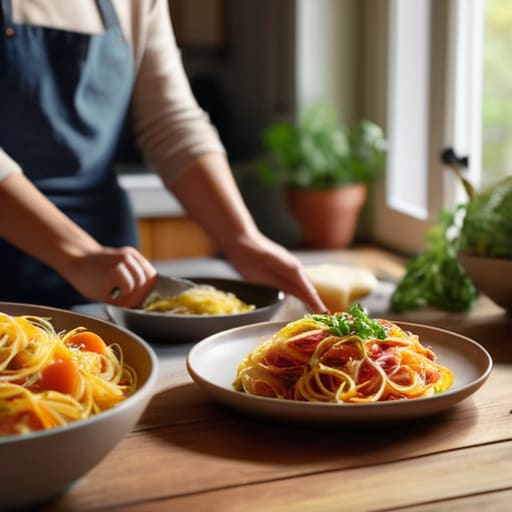
Instead of aiming for gourmet complexity, focus on repurposing ingredients. If you roast a large batch of chicken on Monday, that’s your taco filling on Wednesday and your grain bowl topping on Friday. This approach is one of the best reducing food waste tips I’ve ever implemented because it ensures that every single item you buy actually makes it to your plate. It’s about working smarter, not harder, so you can stop stressing about “what’s for dinner” and actually enjoy your evening.
Five Low-Effort Ways to Cut Your Food Costs
- Embrace the power of pantry staples. Things like dried lentils, rice, oats, and canned beans are incredibly cheap and stay good for months. If you keep these on hand, you’ll always have the foundation for a meal even when your fridge looks a little sad at the end of the week.
- Stop buying pre-cut or pre-washed stuff. I know, it’s tempting when you’re busy, but you’re essentially paying a massive markup for someone else to use a knife. Buy the whole head of lettuce or the block of cheese; it takes five extra minutes of prep, but it saves a significant chunk of change over time.
- Master the art of “repurposing” leftovers. Don’t look at last night’s roasted chicken as a leftover; look at it as the base for today’s chicken tacos or a quick soup. If you treat every meal as a potential ingredient for the next one, you’ll drastically reduce waste and your grocery bill.
- Buy frozen when it makes sense. For things like spinach, berries, or peas, frozen is often actually better because it’s picked at peak ripeness and won’t rot in your crisper drawer if you forget about it for three days. It’s a massive win for both your budget and your sanity.
- Stick to the “unit price” rule. When you’re in the aisle, stop looking at the big flashy price tag and look at the tiny number in the corner that tells you the price per ounce or per gram. Sometimes the “family size” is actually a worse deal, and I’ve saved more money just by reading those tiny numbers than I have by any other hack.
The Bottom Line: Making It Work
Focus on versatile staples—think grains, beans, and seasonal produce—that can be repurposed across multiple meals to minimize waste and maximize your dollar.
Stop aiming for perfection and start aiming for efficiency; a simple, repetitive meal rotation is better for your budget and your sanity than a complex, expensive menu.
Keep your tools and your pantry ready; having the basic gear and a few reliable ingredients on hand prevents those expensive, last-minute takeout orders when you’re tired.
The Philosophy of the Pantry
Cooking on a budget isn’t about deprivation or eating bland leftovers; it’s about mastering the art of the pivot. It’s about knowing how to turn a few basic staples into a solid meal so you can stop stressing over the grocery receipt and start actually enjoying your evening.
Julian Reese Miller
Getting Started Without the Stress
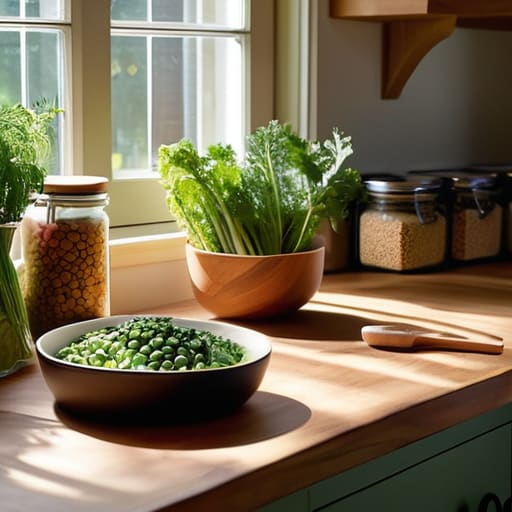
At the end of the day, cooking on a budget isn’t about deprivation or eating nothing but plain rice; it’s about strategic decision-making. We’ve covered how to shop smarter by sticking to lists and seasonal finds, and how to reclaim your evenings through simple, realistic meal planning. By mastering these small habits—like checking your pantry before you head to the store or prepping a few versatile ingredients in advance—you stop letting your kitchen run your life and start making it work for you. It’s all about minimizing waste and maximizing your time, so you aren’t stuck staring at a fridge full of nothing when you’re tired after work.
I know that starting a new routine can feel like just another chore on an already overflowing to-do list, but I promise you it gets easier. Don’t feel like you have to overhaul your entire lifestyle by Monday morning. Just pick one thing—maybe it’s just writing a grocery list or trying one new budget-friendly recipe this week—and go from there. The goal isn’t perfection; it’s about building competence so you can save money and spend less time worrying about the “how.” You’ve got this, and once you find your rhythm, you’ll realize that being capable is a lot more rewarding than it is intimidating.
Frequently Asked Questions
How do I keep my food from spoiling if I'm buying in bulk to save money?
Buying in bulk is a smart move, but it’s a trap if you end up tossing half of it. My rule of thumb: treat your freezer like a second pantry. If you aren’t using it within the week, freeze it. Chop those veggies before they go in, and portion them into individual bags so you aren’t defrosting a giant block of meat for one meal. It saves time and prevents waste.
What are some cheap, versatile ingredients that I should always have in my pantry?
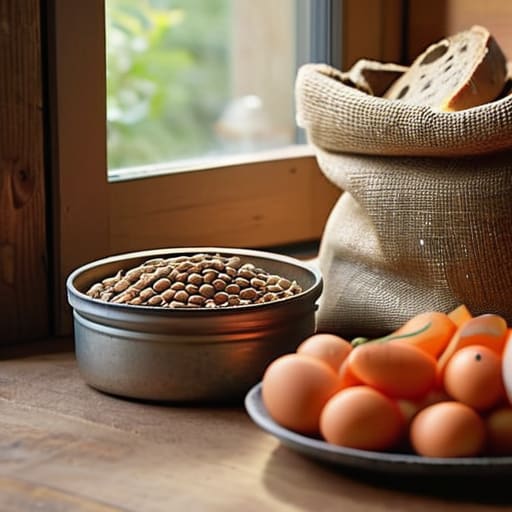
Think of your pantry as your survival kit. I always keep the “foundational five” on hand: dried lentils or beans, rice, oats, canned tomatoes, and pasta. They’re dirt cheap, they don’t expire quickly, and they can be transformed into a dozen different meals with just a few extra spices. If you have these basics, you’re never more than twenty minutes away from a decent meal, even when your fridge looks empty.
Is it actually cheaper to cook from scratch, or am I just wasting time and energy?
It’s a fair question. Honestly? If you’re buying every single niche spice and organic specialty ingredient, you might actually lose money. But for the basics—grains, proteins, seasonal veggies—cooking from scratch wins every time. You’re paying a massive premium for someone else’s convenience and packaging. My rule of thumb: cook the heavy hitters from scratch to save your cash, and only buy the pre-cut stuff when your schedule is genuinely blowing up.