 Tech
Tech
A Parent’s Guide to Setting Up Digital Controls
I remember sitting on my living room floor last Tuesday, staring at a glowing screen and feeling that familiar, sinking sense of dread. My kid had somehow bypassed the basic filters I thought were foolproof, and suddenly, I wasn’t a parent anymore—I was a frustrated IT technician trying to figure out how to set up parental controls that actually work. It’s that specific brand of digital exhaustion where you feel like you’re constantly playing catch-up with an algorithm that’s smarter than you are. Most of the guides out there make this feel like a high-stakes security operation, but honestly, that’s just unnecessary noise that eats up your evening.
I’m not here to sell you on some expensive, bloated subscription service or a twenty-step manual that requires a computer science degree. My goal is to give you the direct, stripped-down version of the truth so you can secure your home network and get back to your actual life. I’ve tested the settings, broken the easy ones, and found the shortcuts that actually stick. We’re going to walk through the essential steps to lock things down without the headache, ensuring your kids stay safe while you reclaim your peace of mind.
Table of Contents
- Simple Steps for Managing Device Usage Without the Headache
- Locking Down Internet Filtering Settings in Minutes
- 5 Pro-Tips to Keep Things Running Smoothly (Without the Drama)
- The Bottom Line: Get Control and Get Back to Your Life
- ## The Goal of Digital Boundaries
- Reclaiming Your Peace of Mind
- Frequently Asked Questions
Simple Steps for Managing Device Usage Without the Headache

First, let’s tackle the big stuff: the actual hardware. Most modern smartphones and tablets have built-in ecosystems designed to handle managing device usage without you needing to download a dozen sketchy third-party apps. If you’re on iOS, Apple’s Screen Time is your best friend; if you’re on Android, it’s Google Family Link. I usually start by setting hard limits on specific categories—like social media or games—so the device essentially “goes to sleep” at a certain hour. This isn’t about being a drill sergeant; it’s about creating a predictable routine so your kids learn that the screen isn’t a 24/7 playground.
Once the timers are set, you’ll want to dive into the internet filtering settings to clean up the content they can actually reach. You don’t need to be a cybersecurity expert to do this. Most browsers and search engines have a “SafeSearch” mode that filters out the heavy stuff automatically. My rule of thumb is to set the guardrails high early on and then slowly loosen them as you see them handling things responsibly. It’s much easier to dial back a restriction than it is to undo the damage of a digital rabbit hole.
Locking Down Internet Filtering Settings in Minutes
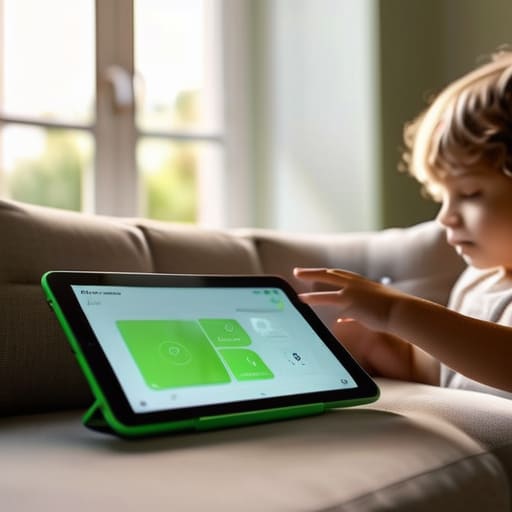
Once you’ve got the basics of screen time down, the next logical step is cleaning up what they’re actually seeing. I used to think internet filtering settings were some complex, enterprise-level security task, but most modern routers and search engines have made this incredibly straightforward. If you’re using Google, just head into the “SafeSearch” settings and toggle it on. It’s not a perfect shield, but it’s a massive first step in ensuring safe browsing for kids without you having to hover over their shoulder every five minutes.
For a deeper dive, I recommend looking at the built-in controls on the device itself—like Apple’s Screen Time or Google’s Family Link. These tools allow you to block specific websites or entire categories of content with just a few taps. It’s less about being a digital warden and more about establishing a baseline for digital wellbeing for children. Once these filters are active, you can stop worrying about every random link they click and finally get back to your own evening.
5 Pro-Tips to Keep Things Running Smoothly (Without the Drama)

- Don’t try to do it all at once. Start with the big stuff—like YouTube or TikTok—and layer in more restrictions as you see how they handle the basics. It prevents the “overload” feeling for both you and them.
- Use the “Family Link” or “Screen Time” features already built into your phone. There’s no point in downloading a third-party app that costs $10 a month when your iPhone or Android already has these tools baked into the OS.
- Set a “hard stop” time rather than just monitoring usage. Instead of constantly checking how many minutes they have left, set an automatic lockout for bedtime. It removes you from the role of the bad guy and lets the device do the enforcing.
- Check your router settings for a “one-and-done” solution. Most modern routers let you create profiles for specific devices. If you set the rules at the Wi-Fi level, it doesn’t matter if they’re on a tablet or a laptop; the rules follow the connection.
- Have the “Why” conversation before you hit the ‘Apply’ button. I’ve found that if I explain that these settings are just a safety net—not a lack of trust—it saves me about ten rounds of arguing later in the week.
The Bottom Line: Get Control and Get Back to Your Life
Don’t overcomplicate it; start with the built-in settings on your phone or router before buying expensive third-party software.
Use technology as a tool for boundaries, not as a way to play digital police, so you can maintain trust with your kids.
Set it up once, test it once, and then let it run in the background so you aren’t constantly micromanaging their screen time.
## The Goal of Digital Boundaries
“Parental controls shouldn’t be about playing digital police or building a wall between you and your kids; they’re just about setting the guardrails so you can stop worrying about what’s on their screen and start focusing on the people behind them.”
Julian Reese Miller
Reclaiming Your Peace of Mind

At the end of the day, setting up these controls is just about building a digital fence around your home. We’ve covered how to manage device time, how to filter out the junk, and how to lock down the settings so you aren’t constantly playing digital police. It’s not about being a micromanager; it’s about setting boundaries that work for your family’s specific rhythm. Once these systems are running in the background, you won’t have to spend your evenings troubleshooting or arguing about screen time. You’ve done the heavy lifting, and now the automated guardrails are doing the work for you.
I know it feels like one more thing on an already overflowing to-do list, but I promise it’s worth the initial twenty minutes of setup. The goal here isn’t to create a high-tech fortress, but to create a space where you can actually relax and connect with your kids without a screen constantly pulling them away. You’ve reclaimed your time and your sanity by being proactive rather than reactive. So, close the laptop, put the multi-tool away, and go enjoy your evening. You’ve got this handled.
Frequently Asked Questions
Will my kids figure out how to bypass these settings if they're tech-savvy?
Look, I’ll be straight with you: if they’re tech-savvy, they’ll probably try. Kids are resourceful, and a determined teenager can find a workaround for almost anything. But don’t let that paralyze you. Think of these controls as a baseline, not a foolproof vault. It’s about setting boundaries and slowing them down, not winning an arms race. Focus on the conversation, keep the tech simple, and don’t sweat the small stuff.
Do I have to set up these controls on every single device separately, or is there a way to do it all at once?
The short answer is: no, you don’t have to go device-by-device like a madman. If you use a centralized ecosystem—like Apple’s Family Sharing or Google’s Family Link—you can push settings across everything from their iPad to your smart TV from one spot. If you’re not in one ecosystem, a good router-level filter or a dedicated app like Bark can act as a single “command center” for your whole home. One setup, one headache.
How do I make sure I'm not accidentally blocking the stuff they actually need for school?
This is the classic “over-correction” trap. I’ve definitely been there—blocking a site for a history project because it flagged a keyword. The trick is to use a “whitelist” approach for school sites rather than just a massive “blacklist.” Most school portals (like Canvas or Google Classroom) allow you to bypass certain filters. If a site gets blocked, don’t just panic; check the URL, add it to your “allowed” list, and move on.